Free FLAC in CarPlay, No Subscription
Trove plays your local FLAC files through CarPlay for free, without a subscription or a Trove account. Import the files on your iPhone, confirm they play from the local library, then open Trove on the car screen. You do not need Pro for local playback, Files import, Wi-Fi Transfer or CarPlay. You bring the music; Trove does not provide a streaming catalog.
CarPlay shows the iPhone’s library, not a live NAS browser. If your songs are on a NAS, use Trove Pro to download them on the phone before the trip. A remote index or a temporary streaming cache is not an offline copy.
1. Import your FLAC files on iPhone
Choose the route that matches where your music is stored:
- Files, free: save the audio in the iPhone’s Files app. In an empty Trove library, tap Open files and select it. Let iCloud Drive files finish downloading first. The first-song FLAC walkthrough covers this route in detail.
- Computer over Wi-Fi, free: put the iPhone and computer on the same Wi-Fi network. Open Wi-Fi Transfer in Trove, keep that screen open, then open its local address in the computer’s browser and upload the audio. Back in Trove, tap Import Received Files and wait for the result. A successful upload alone does not add songs to the library.
- NAS over SMB or WebDAV, Pro: connect the share on the phone, press and hold a track and choose Download to Library, or choose Download All for supported files in the current folder. This does not promise a recursive folder download. Follow the NAS download steps.
Need a file for a quick check? Download the four-second synthetic FLAC test tone. It is a generated sound, not a commercial song; look for Trove offline test tone after importing it.
2. Check the local copy before connecting to the car
Open Songs on the iPhone and find the imported track. For a NAS track, confirm you are playing the downloaded local copy, rather than its remote entry. Disconnect from the source network and play it again; check that playback and seeking work. Do this before connecting wireless CarPlay, which needs its own Wi-Fi/Bluetooth connection.
If you use Google Drive, a selected song or cached audio is not a guaranteed offline library. Export the audio through your provider’s supported workflow, import it through Files and repeat the local check. The Google Drive guide explains the cache limits.
3. Open Trove in CarPlay
While safely parked, connect your iPhone using your car’s supported wired or wireless CarPlay method. Follow Apple’s CarPlay setup instructions if needed. Keep the wireless car connection active even when your home NAS is unreachable.
Open Trove on the car screen. Choose Playlists, Albums, Artists or Songs, then select a track. These are library lists, not NAS folders. Large album, artist and song lists use alphabetical pages. Now Playing shows the current track; use pause/resume and Next, or Up Next to see the queue.
If Trove is missing from the car screen, check iPhone Settings → General → CarPlay → your car → Customize, as described in Apple’s instructions. If a song is missing, return to the phone and check the local copy first.
What is free, and how do other players compare?
Trove’s CarPlay interface has been included in the free app since 1.2. Pro is an optional one-time purchase for features such as NAS/cloud sources and Watch transfer; it is not a CarPlay unlock. Check Trove’s pricing and feature boundaries before buying.
Official pages checked on 4 November 2026 give different purchase models:
| Player | CarPlay and purchase model |
|---|---|
| Trove | Local FLAC and CarPlay are free, with no subscription. See the official App Store listing. |
| Evermusic Flacbox |
Their official CarPlay guide says free versions include CarPlay, with limits on cloud connections, playlists and offline folders. Premium removes limits. |
| Doppler | Its official features page lists a CarPlay app and a seven-day iPhone trial. Check the current in-app purchase terms; a free trial is different from an ongoing free tier. |
Free CarPlay is therefore not unique to Trove. Compare the source connections and offline workflow you actually need; the Flacbox and Evermusic comparisons explain other differences.
What our recorded check shows
On 27 October 2026, we exercised a Trove 2.1 source build in Apple’s CarPlay simulator, with one iPhone 16 Pro simulator running iOS 26.5 and Xcode 26.6. Two synthetic FLAC tracks were imported using free Wi-Fi Transfer. Library browsing, selection, the Now Playing title and progress, pause/resume, Next and Up Next worked. The local tracks remained playable after Trove restarted with the transfer service closed; the virtual car display needed a disconnect/reconnect after the forced restart.
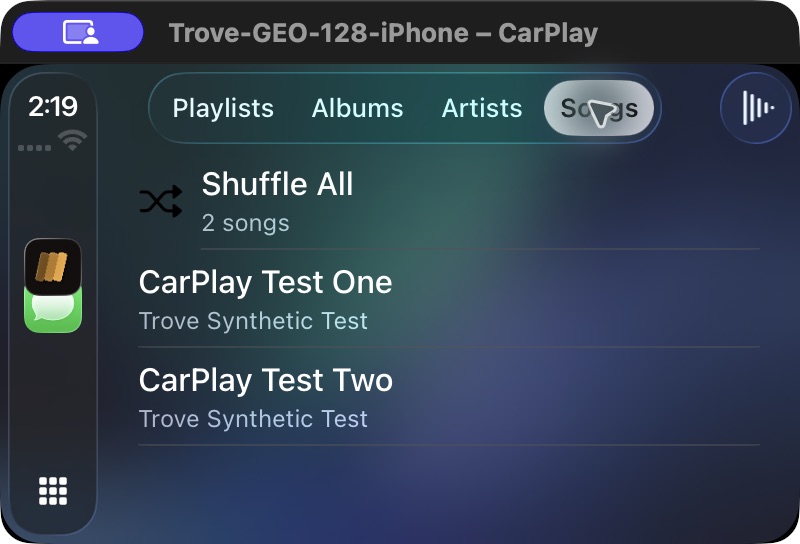
An actual simulator capture of the English interface, not a photograph of a vehicle. The NAS guide gives the full evidence scope.
That recording contains video only. It does not establish audible output, steering-wheel controls, USB versus wireless audio quality or compatibility with your particular vehicle. It is not a test of today’s downloaded App Store binary or of an SMB/WebDAV download chain. We do not promise bit-perfect or hi-res output through CarPlay.
Frequently asked questions
Can CarPlay play FLAC without converting to ALAC? Yes, through an iPhone app that decodes FLAC and provides a CarPlay interface. Trove does both. Import your own files first; you do not need an Apple Music subscription for Trove’s local library. See FLAC vs ALAC if you are choosing a format.
Do I need Trove Pro or a subscription for CarPlay? No. Local FLAC playback and CarPlay are free. Connecting to SMB/WebDAV or a cloud source requires Pro, a one-time purchase.
Can I browse my Synology or other NAS from the car screen? Not in Trove. Manage the source on the phone, explicitly download the songs and confirm the local copies before driving.
Do I need mobile data for downloaded songs? No. Confirm they play locally with the source unreachable before leaving. Keep the connection required by wireless CarPlay active.
Will 24-bit/96 kHz FLAC produce hi-res audio in the car? File decoding and the car’s actual audio output are separate questions. We have not measured your car’s output path and do not promise a particular sample rate or bit-perfect playback.
Which iPhone software do I need? Trove requires iOS 17 or later. Your car or head unit must separately support CarPlay.
Get Trove on the App Store, or see the FAQ and phone-free Apple Watch guide for other listening scenarios.
For Doppler’s documented strengths, NAS differences and playlist-transfer limits, see the Doppler comparison.
For computer-to-phone copying, follow the free Wi-Fi transfer guide without iTunes: send files, explicitly import them, then check the local songs.
Try Trove on your own library
Trove plays FLAC, ALAC, APE and DSD on Mac, iPhone and iPad. With Pro, those devices can browse a NAS over WebDAV or SMB. Apple Watch plays transferred songs offline, not from the NAS. Free to download; Pro is one $9.99 purchase across your devices.